

How to call the Runway Dev API from ComfyUI

To call the Runway Dev API from ComfyUI, add a custom node that sends the request, waits for the task and returns the result to your graph. A coding agent connected to Runway Dev MCP can build that node for you. It gives your workflows any Runway Dev model, including Gen-4.5, Aleph 2.0 and models from other labs, as well as Model Routers and Recipes. ComfyUI also ships built-in Runway nodes, which bill through Comfy credits and cover part of the lineup. This guide covers calling Runway Dev directly.
Why use Runway Dev in ComfyUI?
- The whole catalog: Runway’s Gen-4.5 and Aleph 2.0, plus Seedance, Veo and other labs’ models, behind one key.
- No GPU required: generation runs on Runway, so there are no model files to download and no VRAM to budget.
- Model Routers: point a node at a router and the graph keeps working as new models ship.
- Recipes: one node returns a finished product ad or campaign image.
- Production output: ProRes, PNG sequences that load into the graph as frames, and true HDR with OpenEXR from Gen-4.5.
Installation
Runway does not publish a ComfyUI node pack for Runway Dev. You add one node to your ComfyUI install, and a coding agent connected to Runway Dev builds it for you.
Prerequisites
- ComfyUI installed (download here).
- A Runway Dev account and API key (create an account).
- A coding agent connected to Runway Dev MCP, such as Claude Code, Codex or Cursor. Setup is covered in How to build a generative media integration with your coding agent.
This guide was tested with ComfyUI 0.37.0, the runwayml Python SDK 5.20.1 and Python 3.12 on macOS, in September 2026.
Set your API key
Set your key as the RUNWAYML_API_SECRET environment variable in the environment ComfyUI starts from. If ComfyUI is launched as a desktop app and does not see your shell environment, the node reads the key from a local config file instead.
Do not enter the key as a node input. ComfyUI saves input values into the workflow and embeds the workflow in the images it saves, so a key typed into a node travels with every workflow and image you share.
Build the node
Open your coding agent in ComfyUI/custom_nodes and paste this prompt, replacing the first line with what the node should do:
Build a ComfyUI custom node in this folder that calls Runway Dev to [what the node should do, what goes in, what comes out].
- Before writing code, tell me whether you will call a model directly, a Model Router or a Recipe, and why.
- Read the API key from the RUNWAYML_API_SECRET environment variable, falling back to a git-ignored config file in this folder. Never expose it as a node input.
- Use the runwayml Python SDK and list dependencies in requirements.txt.
- Take each model's fields and allowed values from the Runway Dev API reference or MCP. Do not guess them.
- Convert IMAGE tensors ([B,H,W,C], floats from 0 to 1) to PNG. Send them as data URIs under 5 MB encoded, and use an ephemeral upload for anything larger and for video.
- Wait for the task with the SDK's wait_for_task_output rather than a tight polling loop.
- Download outputs as soon as the task succeeds, because output URLs expire, and return them as ComfyUI IMAGE or VIDEO outputs.
- When a task fails, raise an error that includes its failure and failureCode.
- Print the task ID of every generation to the ComfyUI console, so any task can be looked up later.
- Ask me before running any generation that costs credits.
The agent installs the requirements. On a portable ComfyUI install, they have to go into its embedded Python:
.\python_embeded\python.exe -m pip install -r .\ComfyUI\custom_nodes\<node-folder>\requirements.txtVerifying installation
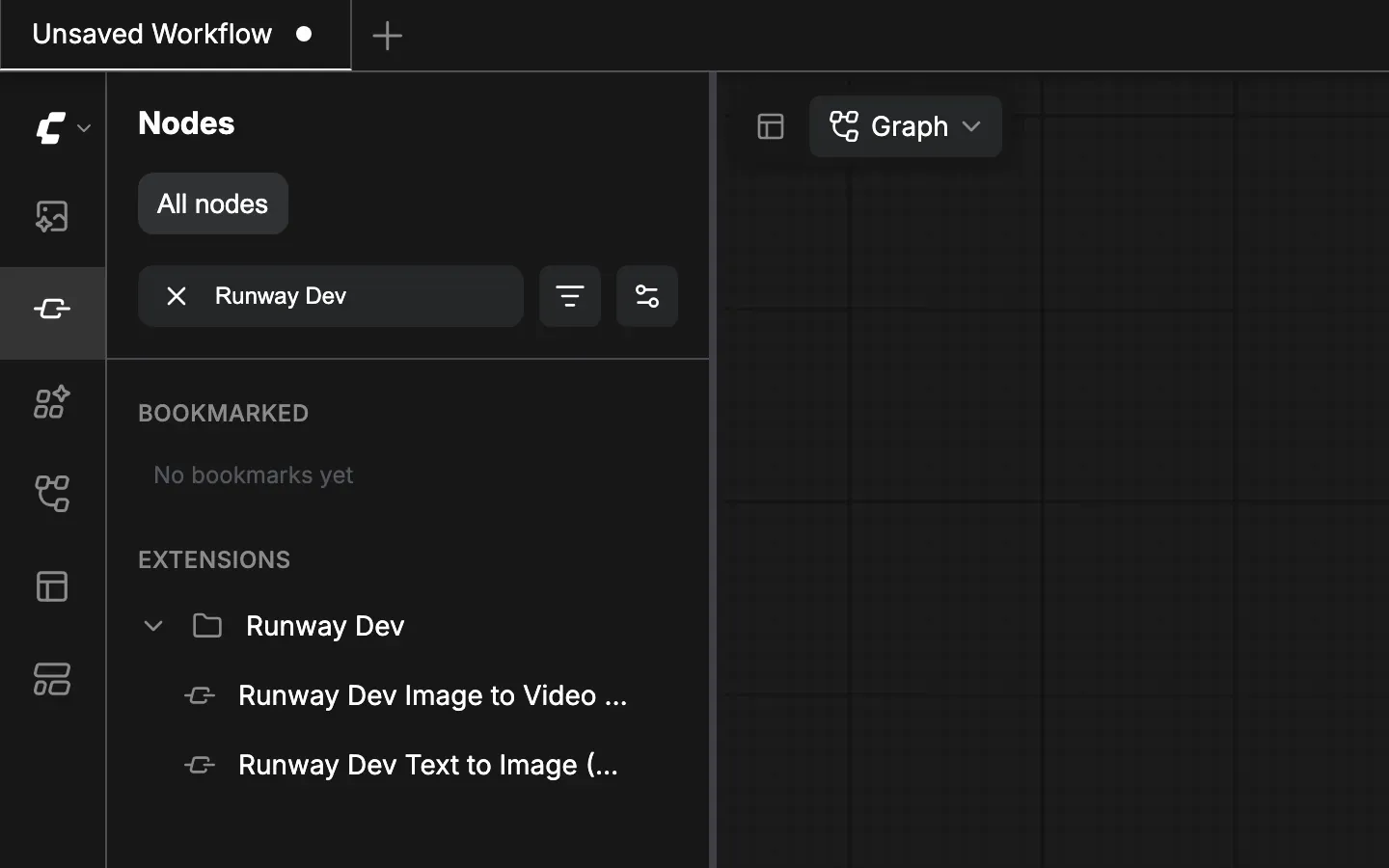
- Restart ComfyUI completely.
- Right-click the canvas and open Add Node.
- Find the category the agent gave the node.
You can also press N to open the node library and search for the category. If the node is not there, check the ComfyUI console for errors during startup.
Using the node
Running a workflow
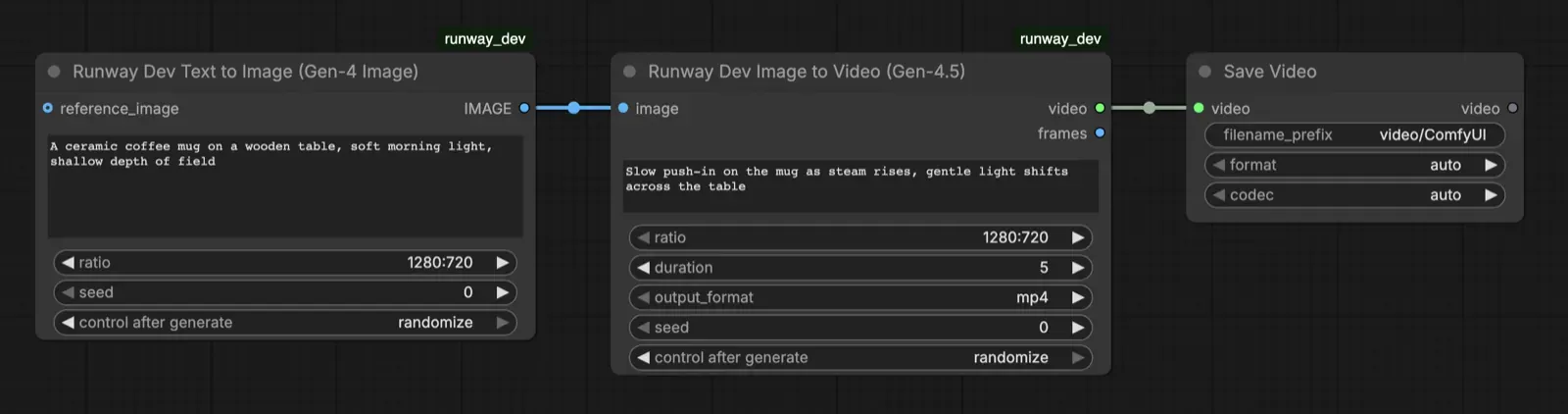
- Connect the node’s inputs, such as a Load Image node or a text prompt.
- Connect its output to Save Image or Save Video, or to the next node in the graph.
- Click Run (or press
Ctrl+Enter).
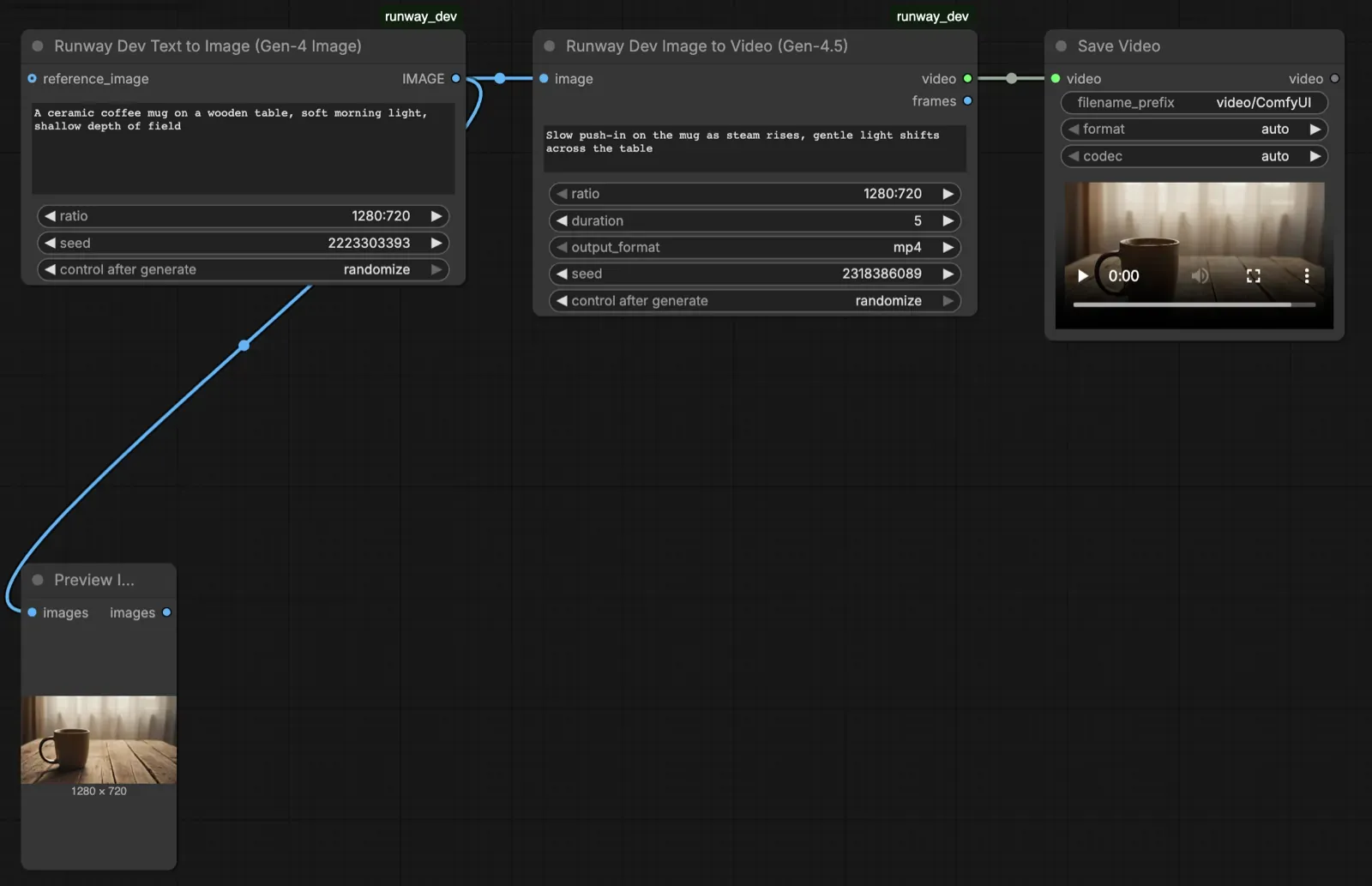
The node submits the task, waits for it to finish, and passes the result on. Saved files land in ComfyUI/output/.
One node per output type
ComfyUI nodes are typed by what they take in and return, so you need one node per kind of job, not one per model. Models that do the same job share a node, picked from a dropdown or through a Model Router.
| Job | Runway Dev endpoint | Node takes | Node returns | Save with |
|---|---|---|---|---|
| Image | /v1/text_to_image |
A prompt, optional reference images | IMAGE | Save Image |
| Video | /v1/text_to_video, /v1/image_to_video |
A prompt, optional first frame | VIDEO, or IMAGE frames with png_sequence |
Save Video |
| Video to video | /v1/video_to_video |
A video and a prompt | VIDEO | Save Video |
| Audio | /v1/text_to_speech, /v1/sound_effect, /v1/speech_to_speech |
Text or audio | AUDIO | Save Audio |
| Upscale | /v1/image_upscale, /v1/video_upscale |
An image or a video | The same type | Save Image or Save Video |
| HDR | /v1/video_to_hdr |
A video | The delivered file | Written straight to ComfyUI/output/ |
Save professional and HDR deliveries as they arrive. Save Video writes H.264 or AV1, so passing ProRes or HDR10 through it re-encodes the file and loses the ProRes encoding or the HDR. Have the node write those files straight to ComfyUI/output/.
Choosing an output format
Gen-4.5 and Aleph 2.0 accept an outputFormat:
mp4(default) for H.264.png_sequencefor frames you keep working on in the graph. The node loads them as an image batch, with no video decoding.proresfor editorial.hdr_exr_sequenceand the other HDR formats for compositing, on Gen-4.5 only.
Professional formats carry a per-second surcharge, listed on the pricing page.
Common node patterns
Image to video:
Load Image → Runway Dev (Gen-4.5) → Save VideoVideo editing:
Load Video → Runway Dev (Aleph 2.0) → Save VideoFrames into the graph:
Runway Dev (png_sequence) → any image node → Save ImageModel-agnostic:
Load Image → Runway Dev (Model Router) → Save Video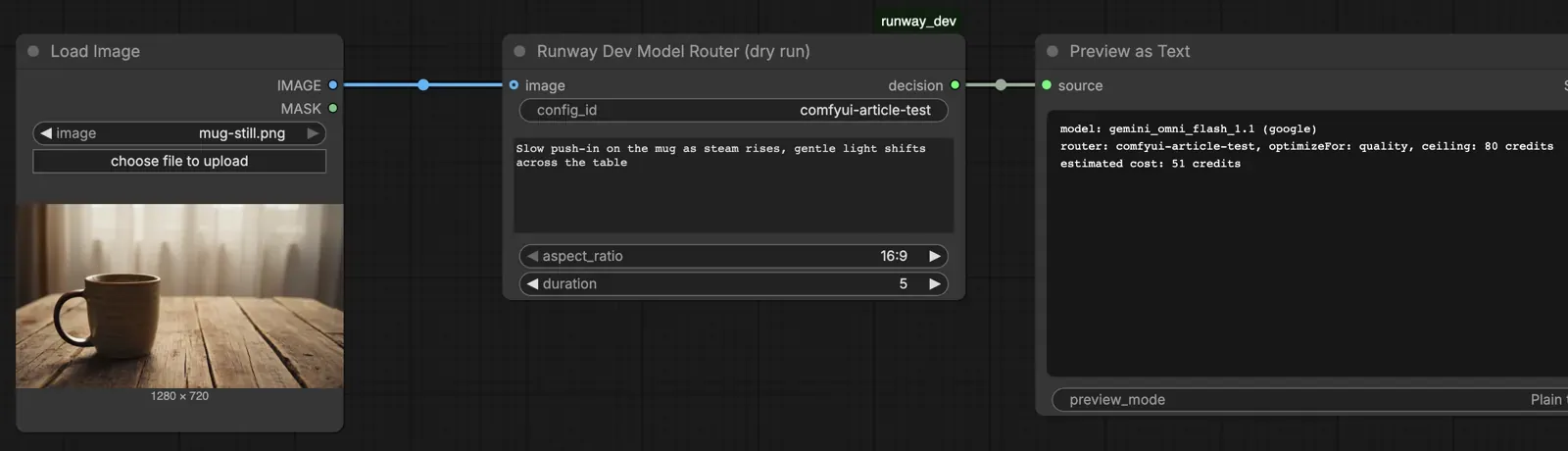
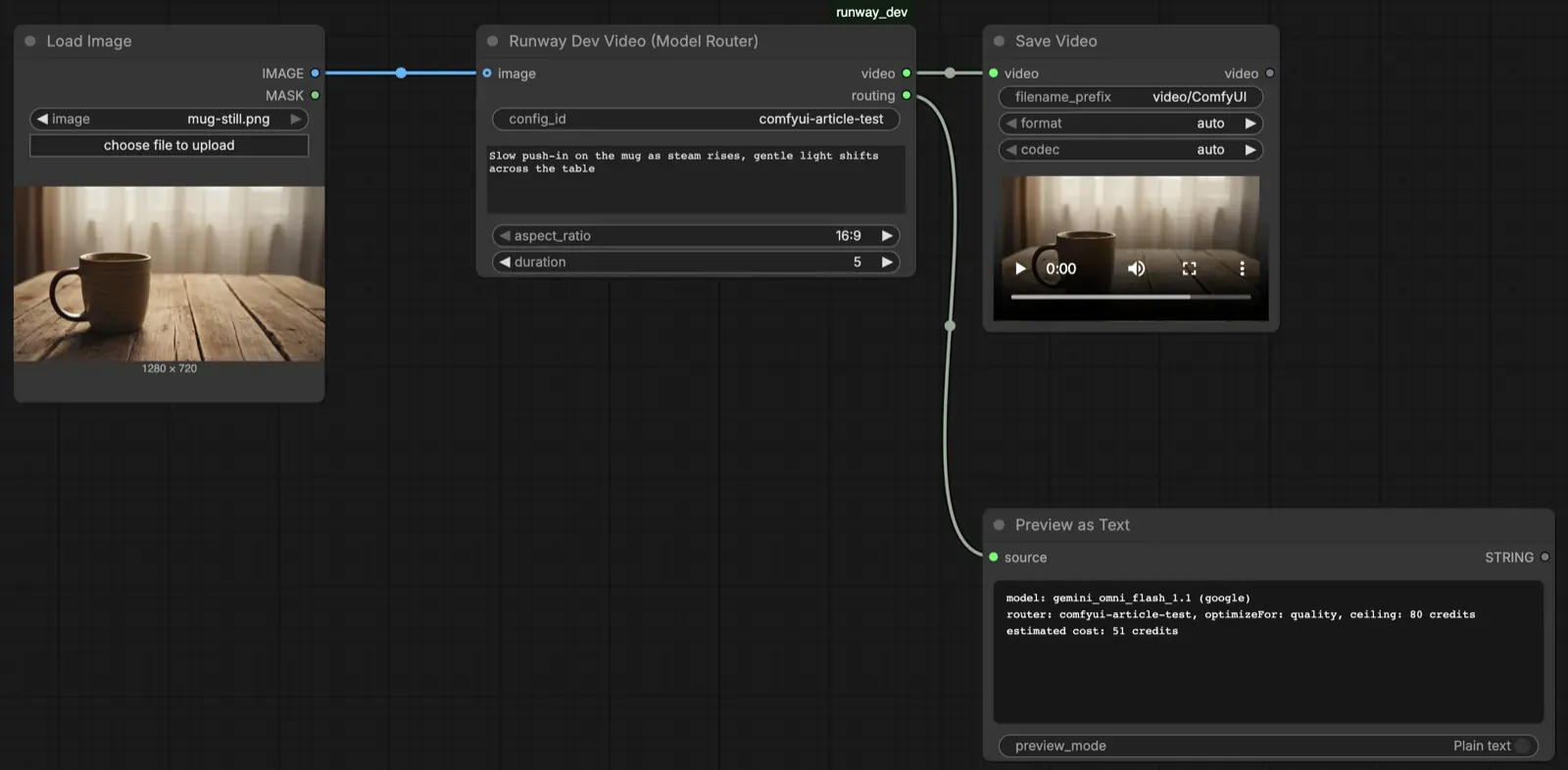
Workflow tips
- Test with the shortest duration and lowest resolution the model accepts, then scale up.
- Use a Model Router rather than a fixed model in workflows you share or keep for a long time.
- Ask the agent for a dry-run node alongside a router node. A dry run returns the model the router would pick and the estimated cost, without generating or billing anything.
- To see why a router picked a model, give the agent the task ID. Through Runway Dev MCP it returns the router’s reasoning and every filter the request passed through.
Troubleshooting
Node not appearing
Issue: the node does not show up after the agent builds it.
Solutions:
- Restart ComfyUI completely, closing and reopening it rather than refreshing.
- Check the ComfyUI console for import errors, and paste them to the agent.
- Reinstall the requirements into ComfyUI’s own Python, especially on a portable install.
Authentication errors
Issue: generations fail with an authentication error.
Solutions:
- Confirm ComfyUI sees
RUNWAYML_API_SECRET. A desktop launch may not load your shell environment, so use the config file fallback. - Check the key is still active in your Runway Dev account.
Generation fails
Issue: the node raises an error instead of returning an output.
Solutions:
- Read the
failureandfailureCodein the error. Content moderation shows up here as a failed task. - If an input is too large, switch it from a data URI to an ephemeral upload.
- If a field is rejected, ask the agent to check the model’s allowed values in the API reference. Ratios, durations and optional fields differ from model to model.
- Ask the agent to look the task up through Runway Dev MCP, which returns the recorded cause.
Retired models
Issue: requests to gen3a_turbo or gen4_aleph fail.
Solutions:
- Both were retired on July 30, 2026. Use
gen4.5orgen4_turboin place ofgen3a_turbo, andaleph2in place ofgen4_aleph.
Getting help
- Runway Dev docs: every page is also available as Markdown by appending
.mdto its path. - Your coding agent: connected to Runway Dev MCP, it can read the docs and your tasks directly.
- ComfyUI Discord: questions about ComfyUI itself.
FAQ
How do I use the Runway API in ComfyUI?
Add a custom node that calls the Runway Dev API with your Runway Dev key, or use ComfyUI’s built-in Runway partner nodes. The partner nodes need no setup and bill through your Comfy account. A custom node runs on your own Runway Dev account with every model and tool, and a coding agent connected to Runway Dev MCP can build it for you.
What is the difference between Runway’s ComfyUI partner nodes and using my own Runway Dev API key?
Partner nodes run through Comfy’s account and bill in Comfy credits. As of September 2026 they cover Gen-4 Turbo for image to video, Gen-4 Image for text to image, and Aleph 2.0 for video to video, with standard output formats. A node using your own Runway Dev key bills to your Runway Dev account and can call any model in the catalog, plus Model Routers, Recipes and professional output formats such as ProRes and OpenEXR.
Can I use my own Runway API key with ComfyUI’s built-in Runway nodes?
No. ComfyUI’s partner nodes authenticate with your Comfy account and draw on Comfy credits, and Comfy’s documentation says bringing your own provider key is not supported yet. To use your own Runway Dev key, use a custom node.
Is there an official Runway custom node for ComfyUI?
No. Runway’s models reach ComfyUI through Comfy’s built-in partner nodes. For your own account, you build a custom node against the Runway Dev API, which a coding agent connected to Runway Dev MCP can do for you.
Are there community ComfyUI nodes that call Runway with my own key?
Yes. Community packs such as comfyui-byokey include own-key Runway nodes, but as of September 2026 they cover only Gen-4 Image and Gen-4 Turbo, and Runway does not maintain them. A node you build against Runway Dev can call any model and tool in the catalog.
Which Runway Dev models can I call from ComfyUI?
With your own key, any model in the Runway Dev catalog:
- Video: Runway’s Gen-4.5, Gen-4 Turbo and Aleph 2.0, plus Seedance, Veo, Wan, Hailuo, Grok Imagine and Gemini video models.
- Image: Runway’s Gen-4 Image, plus Gemini, GPT Image, Seedream and Grok Imagine image models.
- Audio: text to speech, speech to speech, sound effects, dubbing and voice isolation, including ElevenLabs and Seed Audio models.
- Upscaling: image and video upscaling, including Magnific upscalers.
- HDR: Ruby, which converts any SDR video to HDR.
Runway Dev offers the best models from Runway and from other frontier labs behind one key. The current list is in the model guide.
Do I need a different ComfyUI node for image, video and audio?
Yes. ComfyUI nodes are typed by what they return, so you need one node per kind of job: IMAGE for image generation and image upscaling, VIDEO for video, video to video and video upscaling, and AUDIO for speech and sound effects. Models that do the same job share a node, picked from a dropdown or through a Model Router.
Can I use Runway Gen-4.5 in ComfyUI?
Yes, with your own Runway Dev key and a custom node. As of September 2026, ComfyUI’s built-in Runway nodes do not include Gen-4.5.
Can I use Seedance, Veo or other labs’ models through Runway Dev in ComfyUI?
Yes. A custom node using your Runway Dev key can call any model in the catalog, including those from other labs, with the same key and the same task lifecycle.
Do I need a GPU to use Runway in ComfyUI?
No. Runway models run on Runway’s infrastructure, so the node sends a request and receives the result. There are no model files to download and no VRAM requirement.
Where do I put my Runway API key for ComfyUI?
Set it as the RUNWAYML_API_SECRET environment variable in the environment ComfyUI starts from, or in a local config file the node reads and that stays out of version control. Create the key in your Runway Dev account.
Why shouldn’t I type my Runway API key into a ComfyUI node?
ComfyUI saves node input values into the workflow and embeds the workflow in the metadata of the images it saves. A key entered in a node travels with every workflow and image you share.
Does Runway Dev MCP connect to ComfyUI?
No. Runway Dev MCP connects your coding agent to your Runway Dev account so it can build the node. The node itself calls the Runway Dev API directly with your key.
Which coding agents can build a Runway Dev node for ComfyUI?
Any agent that supports MCP, including Claude Code, Codex and Cursor. Add https://dev.runwayml.com/mcp to the agent and authenticate in your browser.
Do I need Runway Dev MCP to build a ComfyUI node?
No, but it helps. Without it, the agent works from the documentation, which it can read as raw Markdown by appending .md to any docs path. With it, the agent works from your account and the live catalog, and can look up failed tasks itself.
How do I send a ComfyUI image to the Runway Dev API?
Convert the IMAGE tensor to PNG and send it as a base64 data URI, which must stay under 5 MB encoded, roughly 3.3 MB before encoding. For larger files, create an ephemeral upload with POST /v1/uploads, which accepts files up to 200 MB.
How do I send a video from ComfyUI to Runway Dev?
Use an ephemeral upload with POST /v1/uploads. Data URIs are capped at 16 MB for video, and Runway’s documentation advises against them for video because they inflate the request.
How do I get a Runway video into ComfyUI as frames?
Request outputFormat: "png_sequence" on Gen-4.5 or Aleph 2.0. The task returns a zip of PNG frames that the node can load as an IMAGE batch, with a separate WAV file when the output has audio.
Can I get ProRes, EXR or HDR output from Runway in ComfyUI?
Yes, with your own key. Gen-4.5 and Aleph 2.0 deliver ProRes and 10-bit SDR through outputFormat. Gen-4.5 also renders true HDR, including half-float OpenEXR and ACEScg sequences. Ruby converts any SDR video to HDR. These formats carry a per-second surcharge, listed on the pricing page.
How do I save ProRes or HDR output from Runway in ComfyUI?
Write the delivered file straight to ComfyUI/output/. ComfyUI’s Save Video node encodes to H.264 or AV1, so passing ProRes or HDR10 through it re-encodes the file and loses the ProRes encoding or the HDR.
Do Runway output URLs expire?
Yes, within 24 to 48 hours. The node should download the result as soon as the task succeeds rather than passing the URL along.
Does a Runway node block ComfyUI while it waits?
The node holds its place in the queue until the task finishes, which takes seconds to minutes depending on the model and duration. In testing, a Gen-4 Image still followed by a 5-second Gen-4.5 clip took about two minutes, and a 5-second routed clip took under one. The node should wait with the SDK’s wait_for_task_output rather than polling in a tight loop.
How do I see why a Runway generation failed in ComfyUI?
A failed task returns a failure message and a failureCode, and the node should raise an error that includes both. Content moderation shows up this way too, as a failed task rather than an HTTP error. A coding agent connected to Runway Dev MCP can look the task up by the task ID the node prints to the ComfyUI console.
Can I use a Model Router in a ComfyUI node?
Yes. The node sends a configId and an input to /v1/generate/video, /v1/generate/image or /v1/generate/audio instead of naming a model. The router picks the best model for each request within the rules you set, so the graph keeps working as new models ship.
Can I preview which model a Model Router will pick?
Yes, with a dry run. Send the same request with dryRun: true, and the router returns the model it would pick and the estimated cost, without generating or billing anything. The Python SDK does not support dry runs yet, so the node sends that request over HTTP.
How do I find out why a Model Router picked a model?
Give your coding agent the task ID. Through Runway Dev MCP, it returns the router’s reasoning in plain language and every filter the request passed through before the model was selected.
Can I use Runway Recipes in ComfyUI?
Yes. A node can call a Recipe, such as a product ad, a product swap or a campaign image, and return the finished asset from a single call.
Why is the Runway Gen-3a Turbo node in ComfyUI deprecated?
Runway retired gen3a_turbo on July 30, 2026, and ComfyUI marked its Gen-3a Turbo and First-Last-Frame Runway nodes as deprecated. Move to Gen-4 Turbo, which the built-in nodes still support, or to Gen-4.5 through a custom node with your own key.
How much does a Runway generation cost from ComfyUI?
Generations from your own node bill to your Runway Dev account at Runway Dev’s standard rates. Per-model prices are on the pricing page.
Can I share a ComfyUI workflow that uses my Runway node?
Yes. The key stays in your environment, not in the workflow, so the workflow is safe to share. Whoever runs it needs the node installed and their own Runway Dev key.
Can the coding agent spend my credits while building the node?
Not without your approval. Runway Dev’s setup brief tells the agent to ask before creating or changing anything live in your account, and the prompt in this guide asks it to check before any billable test run.
Start building on Runway Dev
Related articles
- Tutorials
How to build a generative media integration with your coding agent
Let a coding agent build a video, image or audio generation integration end to end, with Runway Dev MCP giving it live account access.
 Tutorials
Choosing the right model for your use case
Why video and image models are not interchangeable, and how to set up a Model Router that picks the best model for every request.
 Concepts
What is HDR video, and when does your product need it?
What HDR video is, when your product should deliver it instead of SDR, which format to export, and how to generate or convert HDR with an API.