

Turning a multi-step pipeline into one API endpoint
Most generative media features take more than one model call: generate an image, then animate it; write the prompts with a language model, then render each one; trim the result and add a soundtrack. Written in application code, every chain like that carries the same costs:
- A request format per step: each model has its own fields, ratios and limits, and each one has to be learned and kept up to date.
- Glue between steps: waiting for each task, passing its output to the next call and keeping track of which step produced what.
- Failure handling: detecting which step failed and stopping every step that depends on it.
- A release for every creative change: the people who judge the output, designers and art directors, can’t change a prompt or try a newer model without an engineer editing the code.
The chain works, but it is now part of the codebase, and every change to how the result looks is an engineering task.
Moving the pipeline out of the codebase
Workflows are node graphs built in the Runway app and published as private API endpoints on Runway Dev, so one request runs a whole multi-model pipeline, from image and video models to language models and editing steps. Instead of living in code, the chain becomes data: a graph built and tested in a visual editor by whoever owns the result, then published as a versioned endpoint. The application starts a run with one request and reads the outputs from one place. Changing the chain means publishing a new version of the graph, and the application moves to it by changing one id, which can live in config rather than in a release.
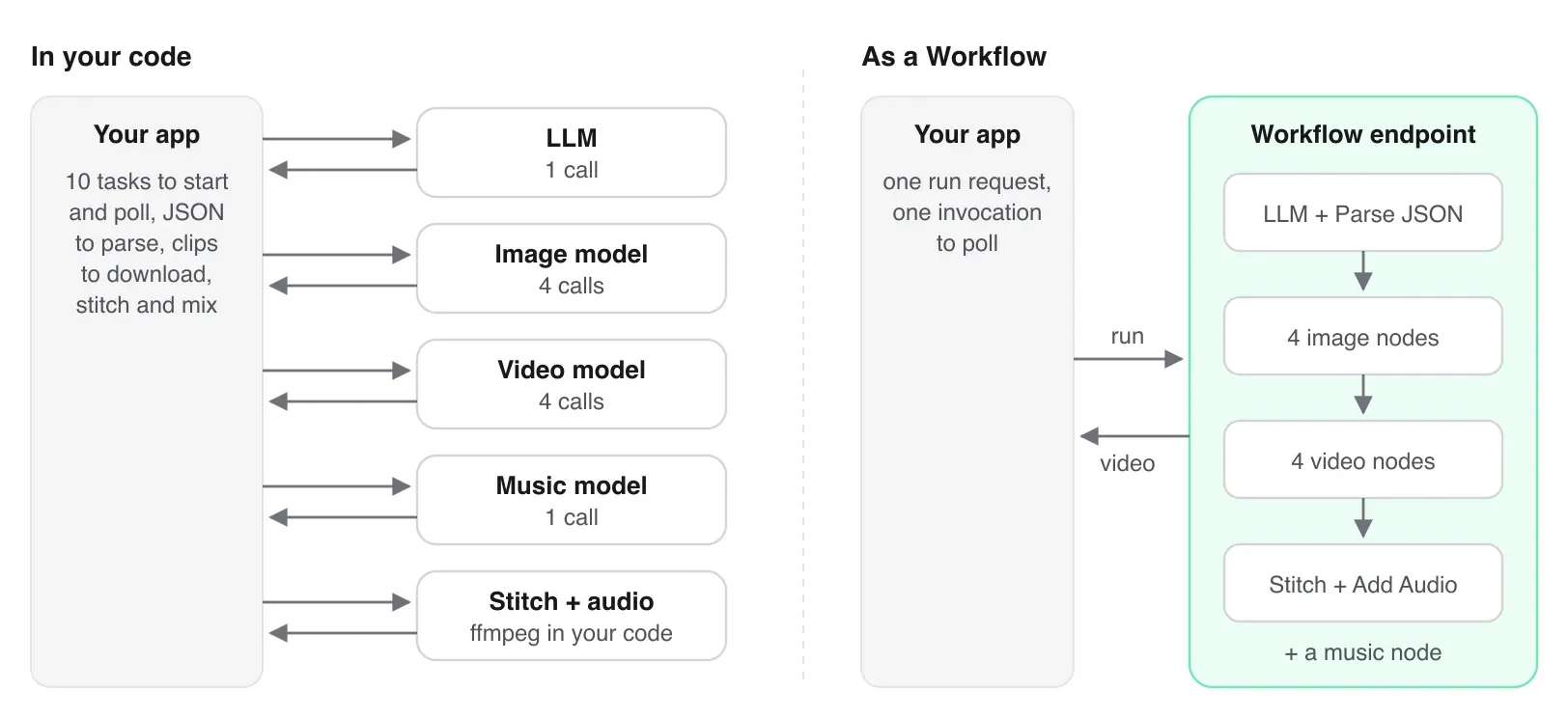
An endpoint pays off most as the chain grows: when a language model writes the prompts, and when the person tuning the result is not the person who deploys the code.
Each node does one thing, and you connect an output of one node to an input of the same type (text, image, video or audio) on the next. There are four kinds of node:
- Input nodes hold the text, images, video or audio you supply. These are the values your API request can replace.
- Media model nodes each run one image, video or audio model.
- LLM nodes run a language model (Claude or Gemini) that writes or rewrites text, usually prompts for later nodes.
- Utility nodes do the editing between steps: extract a frame, trim, stitch, add audio, composite, combine text or parse JSON into separate values.
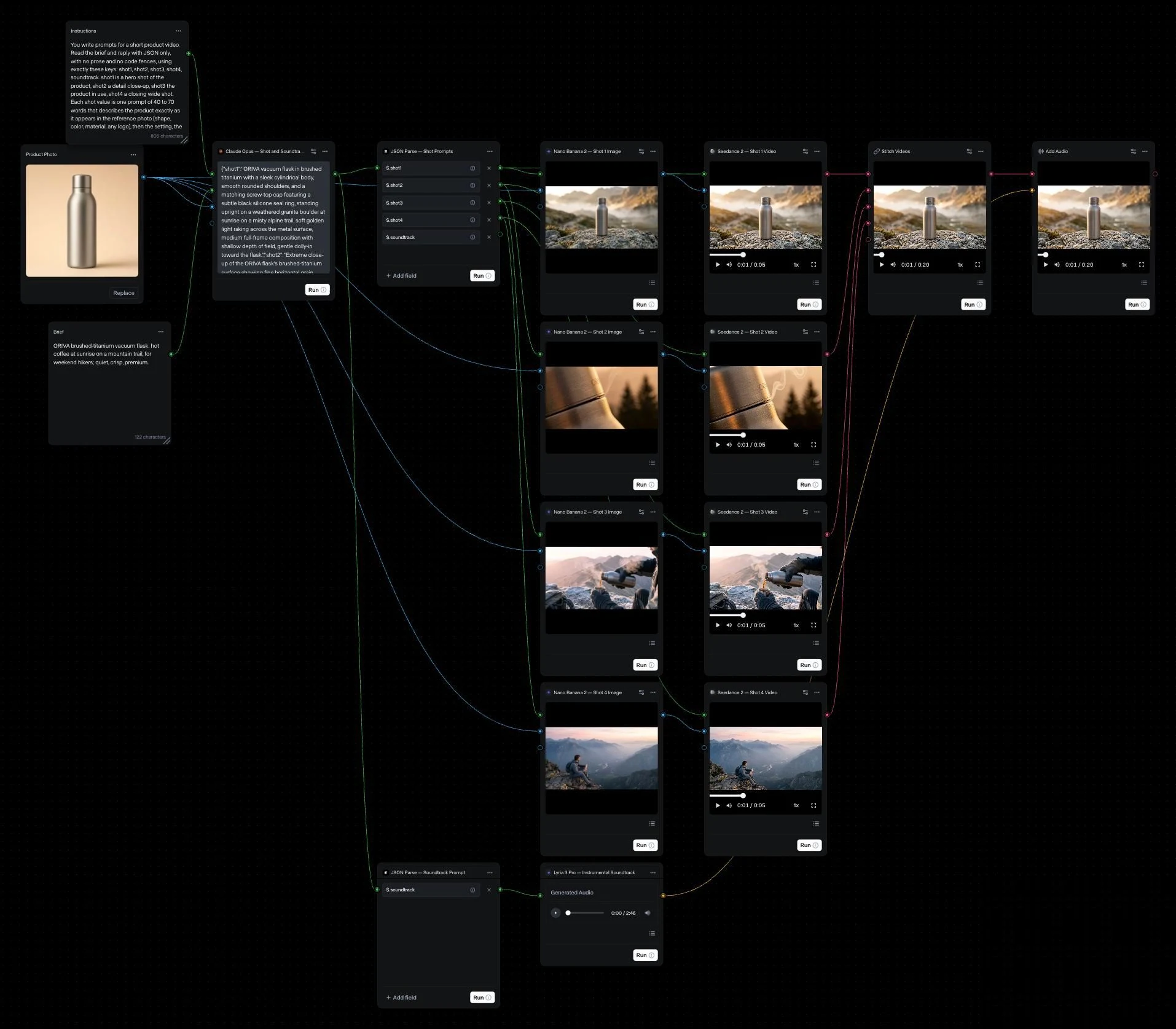
The example in this article has 17 nodes and turns one product photo and a one-line brief into a 20-second product video with music:
- A Claude LLM node reads the brief and the photo and returns JSON with four shot prompts (a hero shot, a detail close-up, the product in use and a closing wide shot) and a soundtrack prompt. Its instructions are in a Text node wired to its system prompt.
- Two Parse JSON nodes split that JSON: one into the four shot prompts, one into the soundtrack prompt.
- Four Nano Banana 2 nodes each render a 16:9 still of one shot, with the product photo as a reference image.
- Four Seedance 2 nodes each animate one still for 5 seconds at 720p.
- A Lyria 3 Pro node generates an instrumental soundtrack from its prompt.
- Stitch joins the four clips in order, and Add Audio lays the music under them.
Written in code, the example is ten generation tasks to start and poll, plus parsing the JSON, downloading the clips, and stitching and mixing them. Two of its models, Claude and Lyria 3 Pro, run on Runway Dev inside Workflows. As a Workflow, it is one request with two inputs and one output.
How to publish a Workflow as an API endpoint
Link a Runway app workspace to your Runway Dev project once, build the graph in the app, publish it and call it by its version id.
1. Link a Runway app workspace to your Runway Dev project
Linking takes an admin of the workspace and a code from an Admin or Billing admin of the Runway Dev project, and each workspace links to one project.
- In Runway Dev, open Manage, then Connections, and under Link Runway app account click Get started (or Link a new workspace if one is already linked). Copy the one-time code.
- In the Runway app, open Workspace Settings, click Link under Developer account, paste the code and click Link account. On Enterprise plans, do this from Organization Settings: pick the workspace, then Link.
Editors and admins of the workspace can now publish Workflows as endpoints. From a coding agent, the Runway Dev MCP tool get_workflows_setup_guide returns these steps with the links for your project.
2. Build the Workflow
In the Runway app, open Workflows and start from a blank graph, copy a featured Workflow or use Create with Agent to build a graph from a description. The example in this article was built that way from a one-paragraph description of its nodes, and the instructions for its LLM node were then written by hand. Building a graph with Create with Agent is free on every plan, and running one with video models in the app is available on Standard plans and higher.
Run nodes one at a time, or click Run all, until the output is right. Runs inside the app use the workspace’s app credits; runs through the API use your Runway Dev credits, whatever the app plan.
3. Publish it
Click Publish, then Publish new endpoint. On the Inputs tab, label and describe each input your code should be able to set and hide the rest with the eye icon; hidden inputs run with the value saved in the graph, though a request can still set them. On the Outputs tab, label the outputs your code should receive. Click Publish endpoint and copy the id it shows.
The endpoint then appears under Workflows in Runway Dev, with each input’s node id, a Run form for testing and Get code for cURL, Node and Python with the saved values filled in.
4. Call it from your code
Starting a run returns an invocation id, and waiting on that id returns the finished invocation, with the outputs in output. An input is addressed by its node id and the output key on that node: prompt for a text input, and image, video or audio for a media input. The API doesn’t reject a node id or key that matches no input; the saved value runs instead, and the run is billed, so copy ids from Get code or GET /v1/workflows/{id}.
import RunwayML from '@runwayml/sdk';

const client = new RunwayML();

// The run sent the photo as a data URI. An HTTPS URL works the same way.
const { id } = await client.workflows.run(
  'd67d7233-7d02-43ba-aa3b-ef383fbaec20',
  {
    nodeOutputs: {
      // Product Photo
      '73217047-f246-4e36-9880-dca34559c86b': {
        image: { type: 'image', uri: 'https://example.com/oriva-flask.jpg' },
      },
      // Brief
      '99a2bb6c-3521-41cf-a376-956acdc5eec3': {
        prompt: {
          type: 'primitive',
          value:
            'ORIVA brushed-titanium vacuum flask: hot coffee at sunrise on a mountain trail, for weekend hikers; quiet, crisp, premium.',
        },
      },
    },
  }
);

// The timeout is in milliseconds. The default is 10 minutes.
const run = await client.workflowInvocations
  .retrieve(id)
  .waitForTaskOutput({ timeout: 20 * 60 * 1000 });
console.log(run.output, run.nodeErrors);Inputs
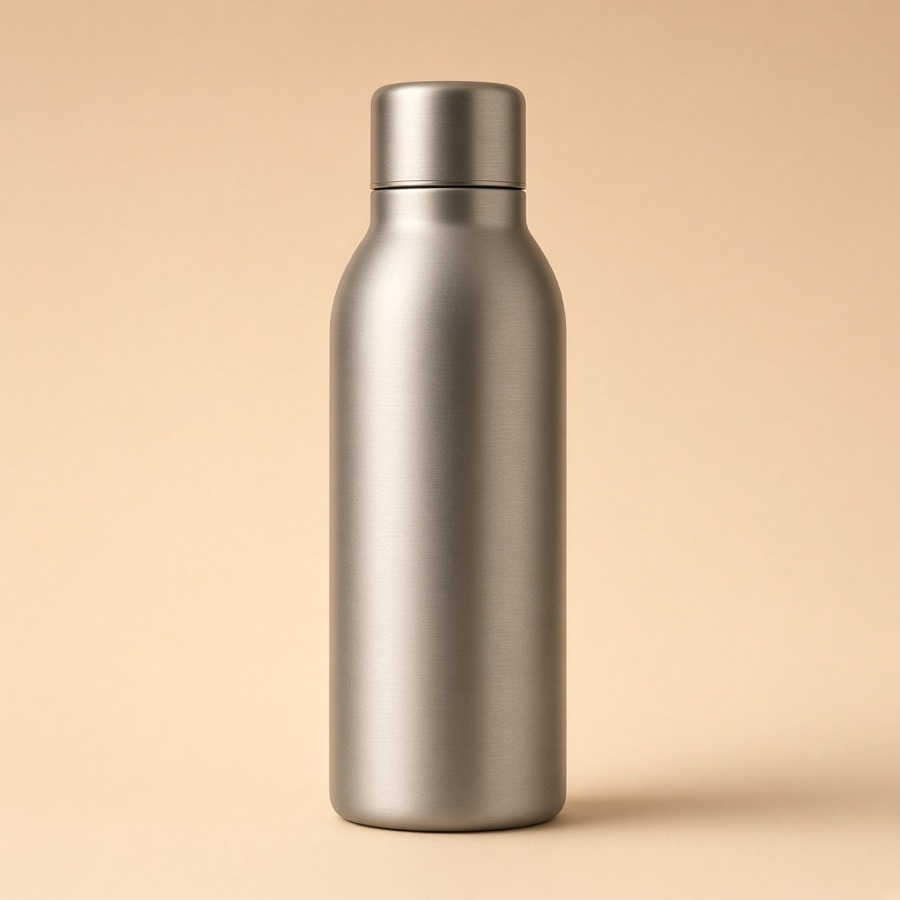 Product Photo
Prompt
ORIVA brushed-titanium vacuum flask: hot coffee at sunrise on a mountain trail, for weekend hikers; quiet, crisp, premium.The example run returned one 20-second 1280×720 video with music, four 5-second shots cut together, in just under 6 minutes, for 650 credits.
Poll GET /v1/workflow_invocations/{id} no more than once every 5 seconds, or let the SDK wait. The invocation moves from PENDING to RUNNING, where progress rises as nodes finish, and ends SUCCEEDED or FAILED. A run ends SUCCEEDED once no more nodes can run, even if some failed, so check nodeErrors on the invocation and that your exposed output is in output. FAILED means the run as a whole failed, usually before any node started; read failure and failureCode, and cost for anything charged.
The SDK waits up to 10 minutes by default; pass a longer timeout for larger graphs. Output URLs expire within 24 to 48 hours, so copy each output you keep to your own storage.
How to build a Workflow that works well as an endpoint
- Use the fewest nodes that do the job. Fewer nodes run faster and cost less.
- Let an LLM node write the prompts. Expose one short input, such as a product description, and have an LLM node turn it into a prompt for each model, so callers never write model-specific prompts.
- Keep an LLM node’s instructions in a Text node. Wire a Text node to the LLM node’s System Prompt and hide it when you publish, so the instructions show in the graph, where whoever edits it can read and change them.
- Split structured LLM output with Parse JSON. Ask the LLM node for JSON in its system prompt and connect its text to a Parse JSON node, so each value (a shot prompt, a caption) feeds its own node.
- Expose only what your code should change, and describe it. Hidden inputs run with the value saved in the graph unless a request sets them. Each exposed input’s description comes back in
GET /v1/workflows/{id}, so a developer or a coding agent knows what to send. - Run nodes one at a time before Run all. Fixing a prompt on one node is faster and cheaper than rerunning the whole graph.
- Pin a version id in config. Publish a new version for every change and move your code to it once it is tested.
Runway Academy’s Building Custom Workflows course walks through the Workflow editor, from connecting nodes to a full featured Workflow.
What a Workflow run costs
Workflows add no fee on top of the models: a run costs the sum of its paid nodes. Paid nodes are media model nodes, LLM nodes and some utility nodes. At October 2026 prices, the four Seedance 2 nodes in this example list at 150 credits each (5 seconds at 720p) and the four Nano Banana 2 nodes at 7 credits each (one 1K image), 628 credits together; the Claude, Lyria 3 Pro and editing nodes add about 22 more. The run in this article was charged 650 credits ($6.50) to the Runway Dev balance, and the finished invocation reported it as "cost": { "credits": 650 }. The video nodes are most of the cost, so their model, resolution and duration are the settings that move it.
If a node fails, the nodes that depend on it don’t run and aren’t charged, and a failed media node’s credits go back to your balance unless input moderation stopped it. Nodes that already finished are charged, and so are branches that don’t depend on the failed node, which keep running.
When to use a Workflow, a Recipe or a Model Router
Use a Workflow when the chain is specific to your product or someone who isn’t a developer tunes it. Use a Recipe when Runway already covers the asset, and a Model Router when you make single calls and want the model chosen for each one.
| Who builds the pipeline | Who picks the models | Use it when | |
|---|---|---|---|
| Workflow | You, in the Runway app | You, one per node | The chain is specific to your product, or a non-developer tunes it |
| Recipe | Runway | Runway | One of the seven Recipes covers the asset, such as a product ad, a product swap or a localized ad |
| Model Router | No pipeline: one generation per call | The router, per request, by cost, quality or latency | You make individual calls and want the best model for each |
| Direct model call | You, in code | You | One step and one known model, or logic that branches on a result |
When not to use a Workflow
Skip a Workflow when the chain needs conditions or loops, or when the model should change per request.
- The chain needs conditions or loops. A Workflow runs the same steps on every request. If a step should run only in some cases, repeat until a result passes a check, or wait for a person to approve a result, call the steps from your code.
- The model should change per request. Each node names its model. To pick a model per call, use a Model Router.
Link a workspace and publish your first Workflow. Create an account to start building.
Workflow reference
Every endpoint below is in the API reference.
List published Workflows
GET /v1/workflows lists every published Workflow with its versions, newest first. Each publish adds a version with its own id. The version number follows the source Workflow, so it need not start at 1.
{
  "data": [
    {
      "name": "Product Photo to 4-Shot Product Video",
      "versions": [
        {
          "id": "d67d7233-7d02-43ba-aa3b-ef383fbaec20",
          "version": 65,
          "createdAt": "2026-10-28T00:23:29.041Z"
        },
        …
      ]
    }
  ]
}
The id you call is a version id. Earlier version ids stay listed, and GET /v1/workflows/{id} still returns their graphs, so you choose when your code moves to a newer id. A version keeps working only while its models are available; if a model is retired, publish a new version with a replacement.
Read a Workflow’s inputs
GET /v1/workflows/{id} returns the graph. An input is an output of an input node; the console shows it unless it is marked exposedToApp: false, and the request addresses it by the node’s id and the output key.
{ "id": "d67d7233-7d02-43ba-aa3b-ef383fbaec20", "name": "Product Photo to 4-Shot Product Video", "version": 65, …
  "graph": { "nodes": [
    { "id": "73217047-f246-4e36-9880-dca34559c86b", "nodeType": "asset-node",
      "nodeOutputs": { "image": { "type": "image", "label": "Product Photo", "exposedToApp": true,
        "description": "One clear photo of the product, ideally on a plain background. Every shot keeps the product as it looks here." } } },
    { "id": "99a2bb6c-3521-41cf-a376-956acdc5eec3", "nodeType": "constant-node",
      "nodeOutputs": { "prompt": { "type": "string", "label": "Brief", "exposedToApp": true,
        "description": "One line on the product and the mood, such as the setting, audience and tone. An LLM turns it into four shot prompts and a soundtrack prompt." } } },
    { "id": "3c40b2e6-19db-4ba9-8f24-dd365b123620", "nodeType": "constant-node",
      "nodeOutputs": { "prompt": { "type": "string", "label": "Instructions", "exposedToApp": false,
        "value": "You write prompts for a short product video. Read the brief and reply with JSON only, …" } } },
    { "id": "e411ebbe-…", "nodeType": "workflow-node", "taskType": "workflow_claude_api",
      "nodeProps": { "name": "Claude Opus — Shot and Soundtrack Writer" }, … },
    …
    { "id": "09ff6f06-78e0-4597-a8b9-c45a098e1d95", "nodeType": "workflow-node", "nodeProps": { "name": "Add Audio" },
      "nodeOutputs": { "video": { "type": "video", "label": "Product Video", "exposedToApp": true } }, … } ],
    "edges": [ … ] } }
Run request body
POST /v1/workflows/{id} takes an optional nodeOutputs object: node id, then output key, then a typed value. Anything left out runs with the value saved in the graph.
- Text, a number or a boolean:
{ "type": "primitive", "value": … } - Media:
{ "type": "image" | "video" | "audio", "uri": … }, whereuriis an HTTPS URL, a Runway upload URI or a base64 data URI of up to 5 MB.
The response is { "id": "…" }, the invocation id.
Invocation responses
GET /v1/workflow_invocations/{id} returns one of five statuses: PENDING, THROTTLED, RUNNING, SUCCEEDED or FAILED. A cancelled invocation returns 404. Both responses below are from the run in this article.
{ "id": "1486750b-6195-42da-8c55-7fb5b6b8a6a1", "createdAt": "2026-10-28T00:27:02.756Z",
  "status": "RUNNING", "progress": 0.5, "output": {} }

{ "id": "1486750b-6195-42da-8c55-7fb5b6b8a6a1", "createdAt": "2026-10-28T00:27:02.756Z",
  "status": "SUCCEEDED",
  "output": { "09ff6f06-78e0-4597-a8b9-c45a098e1d95": [ "https://…/…mp4" ] },
  "cost": { "credits": 650 } }
The output object is keyed by node id, and each value is an array of URLs, so read the ids of the outputs you exposed. Fetch the invocation again for fresh output URLs.
SDK helpers
client.workflows.run() returns { id }, and client.workflowInvocations.retrieve(id).waitForTaskOutput() (workflow_invocations.retrieve(id).wait_for_task_output() in Python) returns the finished invocation. It throws WorkflowInvocationFailedError if the run ends FAILED, and WorkflowInvocationTimedOutError (WorkflowInvocationTimeoutError in Python) when timeout passes: milliseconds in Node, seconds in Python, 10 minutes by default, null or None to wait indefinitely. A timeout stops the waiting, not the run.
from runwayml import RunwayML

client = RunwayML()

run = client.workflows.run(
    "d67d7233-7d02-43ba-aa3b-ef383fbaec20",
    node_outputs={
        # Product Photo
        "73217047-f246-4e36-9880-dca34559c86b": {
            "image": {"type": "image", "uri": "https://example.com/oriva-flask.jpg"},
        },
        # Brief
        "99a2bb6c-3521-41cf-a376-956acdc5eec3": {
            "prompt": {
                "type": "primitive",
                "value": "ORIVA brushed-titanium vacuum flask: hot coffee at sunrise on a mountain trail, for weekend hikers; quiet, crisp, premium.",
            },
        },
    },
)

# The timeout is in seconds. The default is 10 minutes.
invocation = client.workflow_invocations.retrieve(run.id).wait_for_task_output(timeout=20 * 60)
print(invocation.output, invocation.node_errors)
Errors and limits
Without an SDK, send requests to https://api.dev.runwayml.com with Authorization: Bearer <key> and X-Runway-Version: 2024-11-06. The SDKs read the key from RUNWAYML_API_SECRET; keep it on your server.
- Request errors: an unknown id, or one from another project, returns 404, and a version whose graph uses a retired model returns 400. A run of a version whose source Workflow was deleted ends
FAILED. - Node errors:
nodeErrorsmaps each failed node’s id to itsnodeName, amessageand, once generation had begun, afailureCode(task failures). Nodes skipped because an earlier node failed aren’t listed. - Limits: each node counts against your project’s usage tier like a direct model call. Nodes over the concurrency limit wait, so runs take longer on low tiers, and a node that can’t start, for example past a daily limit, appears in
nodeErrors. - Cost:
costappears once every node’s task has finished, so it can be missing from the firstSUCCEEDEDresponse; fetch the invocation again. - Cancelling:
DELETE /v1/tasks/{id}with the invocation id cancels the run. Nodes that have already started may still finish and be charged.
FAQ
What is a Runway Workflow?
A Runway Workflow is a multi-step generation pipeline built as a node graph in the Runway app and published as a private API endpoint on Runway Dev. Your code starts the whole pipeline with one request and reads the exposed outputs from one invocation.
How do I publish a Workflow as an API endpoint?
Link your Runway app workspace to your Runway Dev project under Manage, Connections. Then open the Workflow in the Runway app, click Publish, then Publish new endpoint, label the inputs and outputs the API should see, and click Publish endpoint.
How do I pass my own inputs to a Workflow endpoint?
Send nodeOutputs in the run request, keyed by the input node’s id and then its output key, such as prompt for text or image for an image. Text, numbers and booleans are primitive values; images, video and audio are passed with a uri. Inputs you leave out use the values saved in the graph.
Can a Workflow return more than one output, such as the stills and the final video?
Yes. When you publish, label each output your code should receive on the Outputs tab, such as the four stills and the finished video. The finished invocation’s output then has one entry per output node, keyed by node id, each an array of URLs.
Can I get notified when a run finishes instead of polling?
No. Runway Dev has no webhooks, for Workflow runs or for other tasks. Poll GET /v1/workflow_invocations/{id} no more than once every 5 seconds, or let the SDK wait, from a background job or a queue.
How many runs of the same Workflow can I start at once?
There is no separate limit on runs. Each node counts against your project’s usage tier like a direct model call, so with many runs in flight, nodes past the concurrency limit wait their turn and every run takes longer. A node that can’t start, for example past a daily limit, appears in nodeErrors.
Does republishing a Workflow change my integration?
Not by itself. Each publish adds a version with its own id, and earlier version ids stay listed, so you choose when your code moves to a newer id.
Do I need to write code to build a Workflow?
No. Workflows are built in the Runway app’s Workflow editor, or described in plain language with Create with Agent. Code is only needed to call the published endpoint.
Can a coding agent build or publish a Workflow for me?
No. Building and publishing happen in the Runway app, where Create with Agent builds a graph from a description. A coding agent can do the rest: the Runway Dev MCP tool get_workflows_setup_guide gives it the steps to link your workspace, and GET /v1/workflows/{id} gives it each input’s node id and description, so it can write the code that runs the Workflow.
Do I need a paid Runway app plan to build or test a Workflow?
Not to build one: building a graph with Create with Agent is free on every plan. Running it with video models inside the app takes a Standard plan or higher and uses the workspace’s app credits. Runs through the API use your Runway Dev credits, whatever the app plan, so a published Workflow can also be tested with the Run form in Runway Dev.
Can designers edit a Workflow without a code release?
Yes. Editors and admins of the linked workspace can change prompts, models and steps in the Runway app and publish a new version. Your integration keeps calling the version id it already uses, and moving to the new version means changing one id, which can live in config rather than in a release.
Start building on Runway Dev
Related articles
 Tutorials
How to generate campaign-ready ads and images with one API call
Runway Dev Recipes turn product photos and a brief into production-ready ads, campaign images and UGC from one API call, with real runs and costs.
 Tutorials
Choosing the right model for your use case
Why video and image models are not interchangeable, and how to set up a Model Router that picks the best model for every request.
 Tutorials
How to build a generative media integration with your coding agent
Let a coding agent build a video, image or audio generation integration end to end, with Runway Dev MCP giving it live account access.